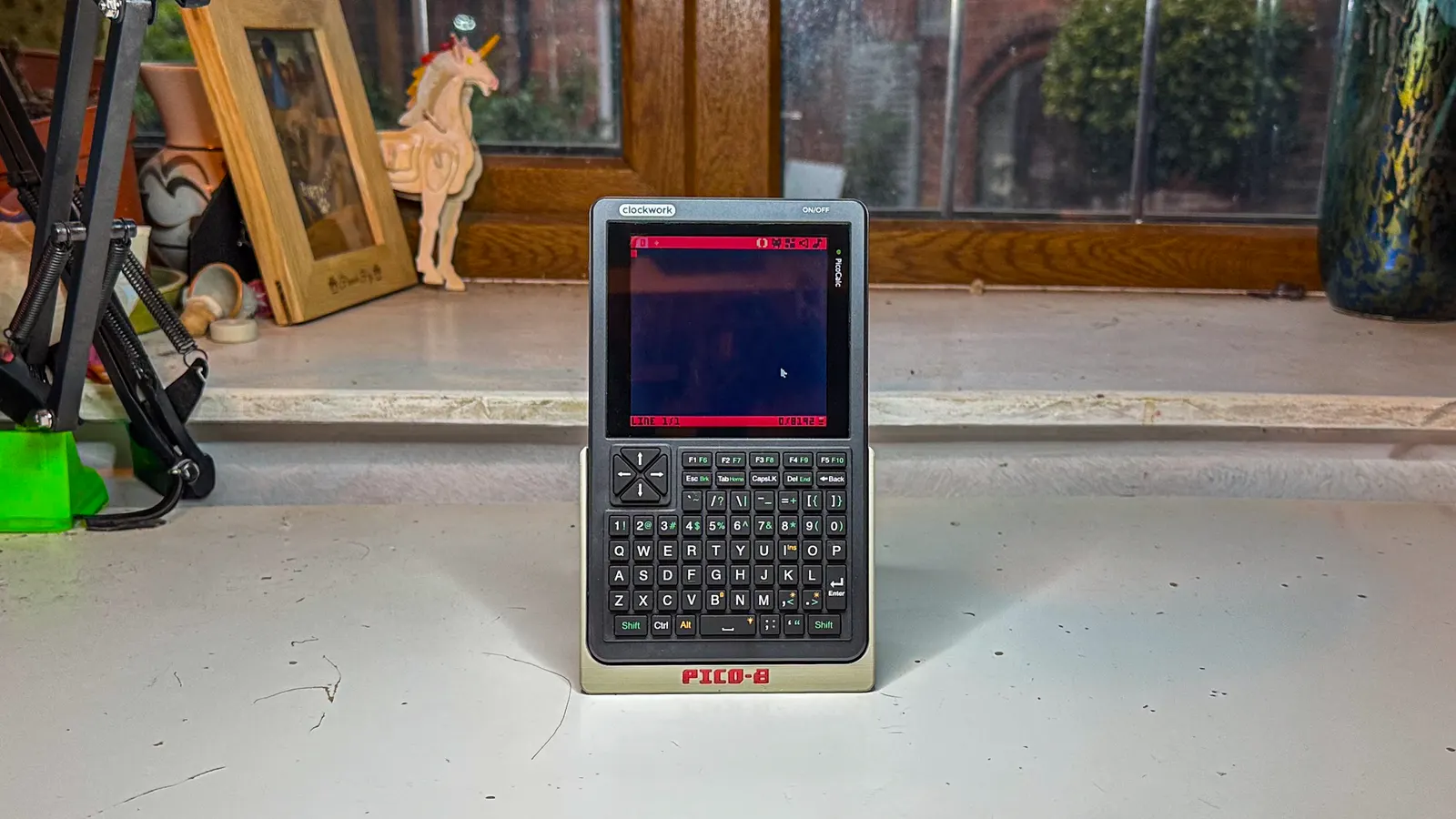
How to go from delivery to a ZeroCalc in 2026: My happy standalone little Pico-8 dev machine.
What to expect
Link to section: What to expectHere's a quick demo of Pico-8 running on my ZeroCalc.
Ignore the 3d printer sounds, I'm printing a handle for the thing.
Why write this?
Link to section: Why write this?There's a bunch of awesome people over at forum.clockworkpi.com who have worked out how to make this work. But, the forum post is a bit difficult to navigate, and find out what you absolutely need, vs. what's just cool tinkering.
For my purposes: the PicoCalc hits a great form factor and price point for a standalone Pico-8 dev machine. I love the Pico-8 platform and regularly tinker with small game ideas.
I've previously used a uConsole with a Raspberry Pi CM5 for this purpose, but it's overkill.
The Raspberry Pi Pico that the PicoCalc uses by default lacks power to run Pico-8 well, like I'd like it to.
My aim was to get the PicoCalc to run on a Pi Zero 2 W with pico8 and git. So that I can tinker with ideas, and hand them off to a repo and pick up elsewhere.
I don't need external USB, GPIO or anything similar.
Just pico8, a display, a keyboard, audio and internet.
If your needs are different, don't worry! I've left links to all the resources and hints about where to look for different setups throughout this guide. The Pi Zero 2 W is fairly capable compute with a lot of versatility, you could use it for all sorts.
What you need
Link to section: What you need- A PicoCalc kit - I got mine from AliExpress.
- A Raspberry Pi Zero 2 WH - The WH stands for Wi-Fi + Headers (presoldered headers). You can also just get a 2 W and solder the headers yourself.
- A reasonably speedy microSD card with a bit of space (32 GB+) - I use SanDisk Ultras because I trust them, I wanted about 128 GB so this is what I went with.
- The adapter board - I purchased from PCBWay, they sold me 5 for about US$1 each. Shipped to the UK in 3-4 days for a reasonable cost (about US$20).
- 2x20 pin headers with 2.54mm pitch - I bought mine from amazon in a set, I only used 2 of the 20pin headers. My Pi Zero 2 W came with headers presoldered. If you get the Pi Zero 2 W without headers you'll need some more for that too.
- 2x 18650 batteries from a good source - I bought mine (flat top) from NuBattery in the UK. There's forum posts on battery options if you're stuck.
- A trusty soldering iron and some solder.
Optional: soldering helpers
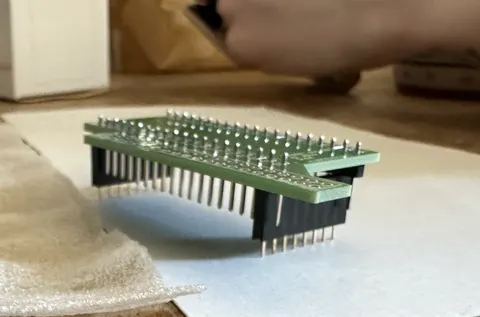
Link to section: Optional: soldering helpersI also used 2 female 8 pin headers (2.54mm pitch) to help with soldering. Mine came from this kit some time ago.
TL;DR: if you plug the male headers into the female and sit the adapter board on top it's super easy to solder them straight.
Optional: Case
Link to section: Optional: CaseThere are other optional features like external USB, and a custom case. Most of the details of those can be found on Michael's Printables project.
Shameless Plug: Handle, stand, grip for the ZeroCalc
Link to section: Shameless Plug: Handle, stand, grip for the ZeroCalc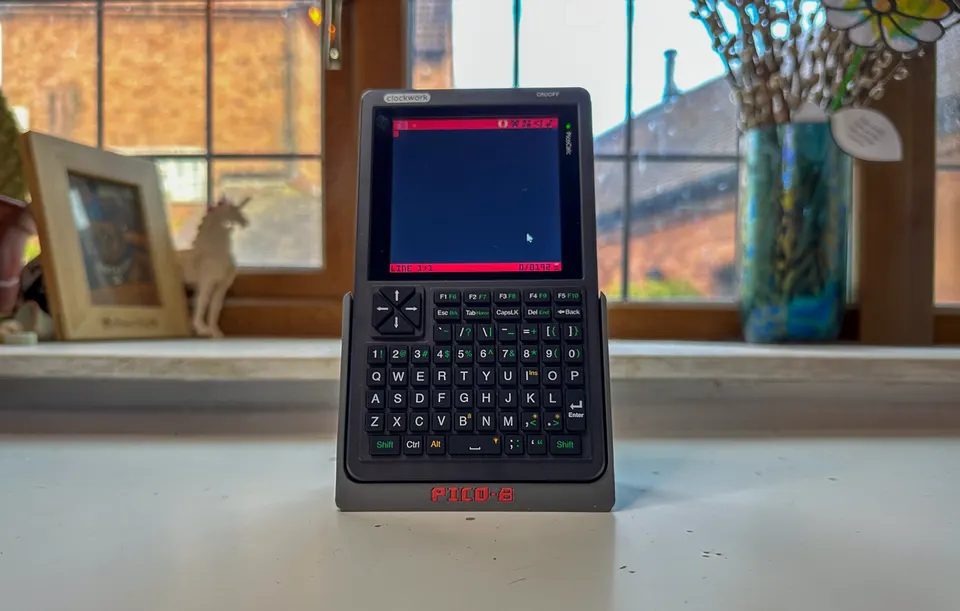
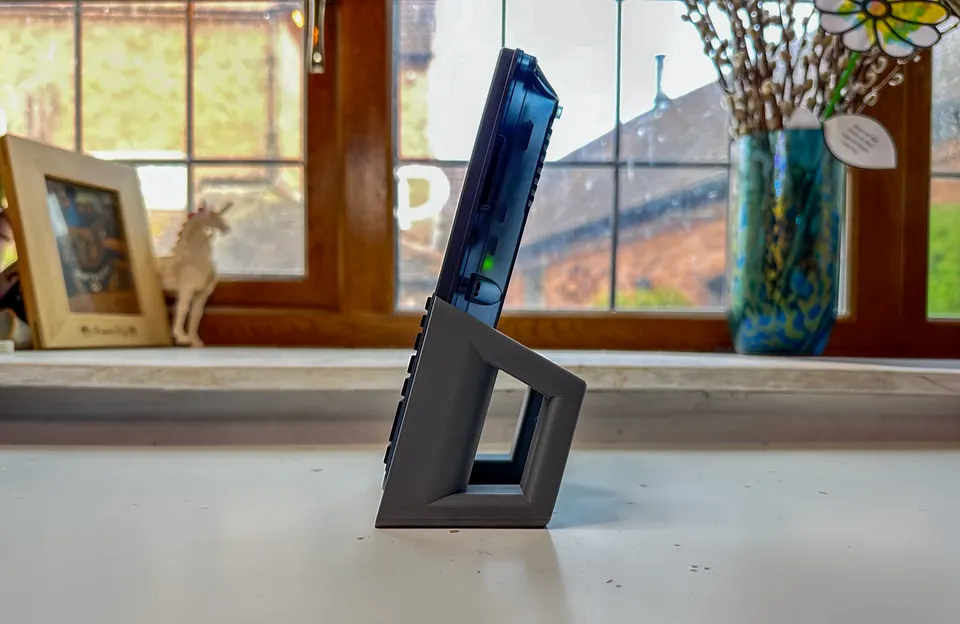
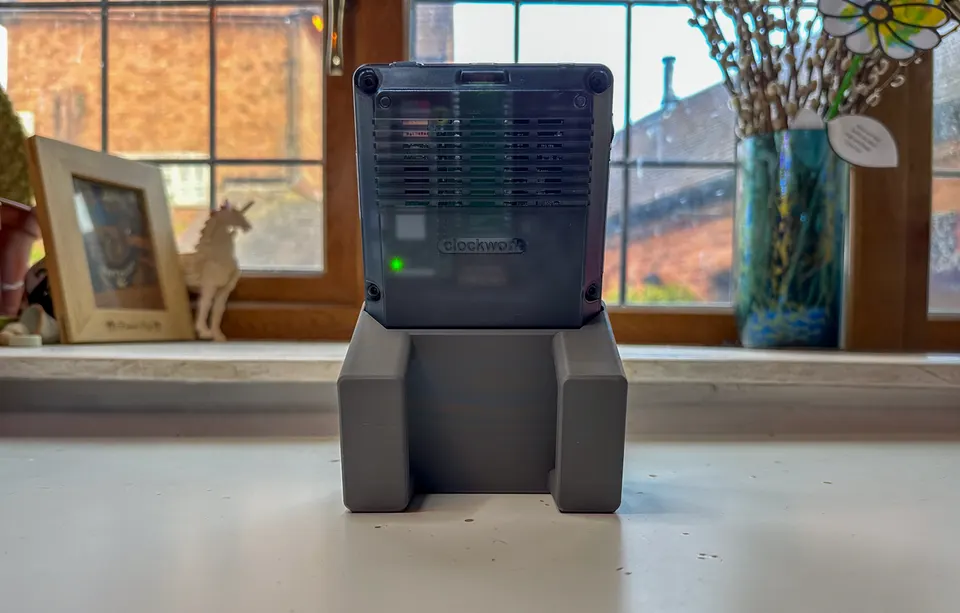
If you like the grip in the cover image, you can find it at Makerworld: PicoCalc Grip Stand Handle.
If you like it, check out the other things I make!
Heads up: there's a version you can print without the Pico-8 logo on the front. It's plate 2 in the print profile, and the .step files are included in the 3D model files if you want to modify it yourself.
Pictured and link is version 2 of the handle, that I made more comfy!
Flashing the SD Card
Link to section: Flashing the SD CardSource: github.com/nibheis/picocalc_trixie: Step 1
- Download and install Raspberry Pi Imager
- Plug in your microSD card
- Open Raspberry Pi Imager
In Imager:
- On the select device page choose "Raspberry Pi Zero 2 W" and hit next
- On the Choose OS page, choose "Raspberry Pi OS (other)" and hit next
- On the next page, choose "Raspberry Pi OS Lite (64 Bit)" (A port of Debian Trixie) and hit next
- On the storage page, select your microSD card
- On the Customization page, set your hostname. I used "zerocalc" for mine, but you can choose whatever you like.
- On the Localisation page, set your locale. But! Set your keyboard layout to "us".
- On the User page, set your username, and password.
- On the Wi-Fi page, set up your Wi-Fi credentials; so we can ssh for the rest of the install.
- On the remote access page, enable SSH and set your authentication method as you wish.
- Hit "Write" and wait for it to finish.
- Unplug the microSD card and plug it into your Pi Zero 2 W.
Building the hardware
Link to section: Building the hardwareMichael's video is a great walkthrough, and the summary below is the steps I took.
Video
Link to section: VideoMichael posted a great build video that goes over the soldering, and physical build.
Text Summary
Link to section: Text Summary- Solder the 20pin headers to the adapter board
- Solder the Pi to the adapter board as well
- Plug in your microSD card to the Pi Zero 2 W (Flash instructions below)
- Plug the adapter board into your PicoCalc
- Add batteries
- Screw everything together
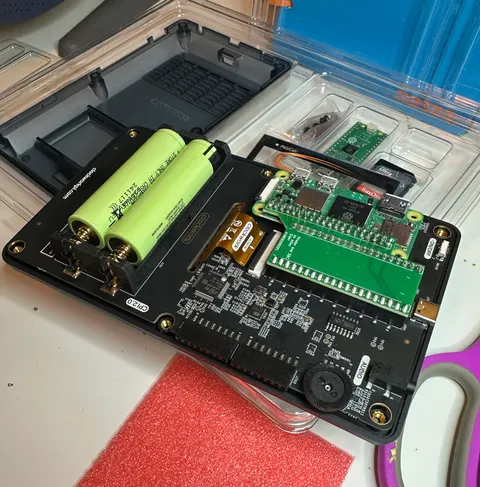
Note: in this image my microSD card isn't plugged in, it should be plugged into the Pi Zero 2 W.
Software setup
Link to section: Software setupSource: github.com/nibheis/picocalc_trixie
Power on
Link to section: Power onOnce you have flashed the microSD card and completed the hardware build. Power it on. You'll find it may reboot a couple times the first time you hit it; don't worry, it'll eventually come up stable. I think it's doing SD card expansion and initial setup at that time.
Find your Pi on the network
Link to section: Find your Pi on the networkThe easiest way to find your ZeroCalc on the network is to use ping with the hostname you set in the imager. For example, if you set your hostname to zerocalc you can ping it with:
ping zerocalc.local
# or
ping zerocalc
SSH into the Pi
Link to section: SSH into the PiUse the same hostname or IP address to SSH in:
ssh zerocalc
# You can prepend your username to set the correct user to log in to as well.
ssh james@zerocalc
Update installed software
Link to section: Update installed softwareOut the gate you want to run apt update.
sudo apt update && sudo apt upgrade -yInstall git
Link to section: Install gitsudo apt install git -yClone the picocalc_trixie repo
Link to section: Clone the picocalc_trixie repogit clone https://github.com/nibheis/picocalc_trixie.gitIt should be cloned into ~/picocalc_trixie(/home/your-username/picocalc_trixie)
In the picocalc_trixie directory, copy the display firmware
Link to section: In the picocalc_trixie directory, copy the display firmwarecd picocalc_trixie
sudo cp display/picomipi.bin /lib/firmware/Set up the display
Link to section: Set up the displayActivate the SPI Interface for the display
Link to section: Activate the SPI Interface for the displaysudo nano /boot/firmware/config.txtAdd the following lines to the end of the file:
# Enable SPI for the display
dtparam=spi=on

# Driver configuration for the display
dtoverlay=mipi-dbi-spi,spi0-0,speed=70000000
dtparam=compatible=picomipi\0panel-mipi-dbi-spi
dtparam=width=320,height=320,width-mm=43,height-mm=43
dtparam=reset-gpio=25,dc-gpio=24
dtparam=backlight-gpio=18
dtparam=clock-frequency=50
Configure the framebuffer configuration in the kernel command line
Link to section: Configure the framebuffer configuration in the kernel command linesudo nano /boot/firmware/cmdline.txtAdd the following to the end of the line:
fbcon=map:1 fbcon=font:MINI4x6Reboot
Link to section: Rebootsudo rebootWhen you reboot this time, your display should work, but your keyboard won't be set up yet.
Set up the keyboard
Link to section: Set up the keyboardNavigate to the keyboard firmware directory
Link to section: Navigate to the keyboard firmware directory- SSH back into the Pi
cdto thepicocalc_trixiedirectorycdinto thekeyboarddirectory
If you need the mouse, edit the firmware
Link to section: If you need the mouse, edit the firmwareIf you need the mouse emulation that comes with the PicoCalc:
press shift to turn the arrow keys into the mouse, and the square brackets into lmb and rmb
You need to update the picocalc_kbd.c file to uncomment the disabled mouse emulation.
sudo nano picocalc_kbd/picocalc_kbd.c- Remove the
//|in front of the lines commented out. - They are the only lines commented out with this pattern
//|so it should be easy to find. - At the time of writing it's lines 223-311
- Delete the
//|from the start of each line in that block, and save the file.
Build and install the keyboard firmware
Link to section: Build and install the keyboard firmware# In the picocalc_trixie/keyboard directory
chmod +x setup_keyboard.sh
sudo ./setup_keyboard.shConfirm the keyboard setup worked
Link to section: Confirm the keyboard setup workedsudo cat /boot/firmware/config.txtThe start of the file should now have the following lines:
dtparam=i2c_arm=on
dtoverlay=picocalc_kbd
Set up Audio
Link to section: Set up Audiosudo nano /boot/firmware/config.txtAdd the following lines to the end of the file:
dtparam=audio=on
dtoverlay=audremap,pins_12_13Reboot
Link to section: Rebootsudo rebootOnce you've rebooted you should have most things working! The rest is optional but might be handy.
Optional: Configure your terminal font for a better display experience
Link to section: Optional: Configure your terminal font for a better display experienceSource: a comment by Lachlan_Beveridge
sudo dpkg-reconfigure console-setupWhen you run this command, you'll be prompted with a series of questions. Here's how to answer them for the best experience on the PicoCalc display:
encoding: UTF-8
character set: Guess optimal
font: Terminus
size: 6×12
Optional: Fix keyboard layout
Link to section: Optional: Fix keyboard layoutIf, like me, you flashed with the wrong keyboard layout, you can fix it with:
sudo nano /etc/default/keyboard- Find the line that starts with
XKBLAYOUT= - Change the value to
us(or your desired layout) - Save the file and exit
- Reboot the Pi
Optional: Copy useful scripts to your path
Link to section: Optional: Copy useful scripts to your pathSource: github.com/nibheis/picocalc_trixie
The picocalc_trixie repo has some useful scripts for running Pico-8 and other utilities. You can copy them to a directory in your PATH for easier access.
# Go to the picocalc_trixie directory
cd ~/picocalc_trixie
# Copy the scripts to /usr/local/bin
sudo cp -r user_bin/* /usr/local/bin/
# one is called "shutdown" which will lead to an infinite loop. rename it.
sudo mv /usr/local/bin/shutdown /usr/local/bin/shutdown-pi

# alternatively, modify the script and have it point to /usr/sbin/shutdown
sudo nano /usr/local/bin/shutdown
# Change 'shutdown' to '/usr/sbin/shutdown' and save the file.
Optional: Power off shutdown script
Link to section: Optional: Power off shutdown scriptFix problems with the original commands
Link to section: Fix problems with the original commands- Enable i2c in
raspi-config
# Run raspi-config
sudo raspi-config
# Navigate to "Interface Options"
# Select "I2C" and enable it
# Finish and reboot- Install
i2c-tools
sudo apt install i2c-tools -yFollow the original guide here: Picocalc Trixie Guide
EZ Mode
Link to section: EZ Mode- Enable i2c in
raspi-config
# Run raspi-config
sudo raspi-config
# Navigate to "Interface Options"
# Select "I2C" and enable it
# Finish and reboot- Clone my fork of the repo with a full install script
git clone https://github.com/jamescodesthings/picocalc_trixie.git- Run the install script for the shutdown utility
cd picocalc_trixie
cd poweroff
./installResources
Link to section: ResourcesHere's the main resources I used when working this out.
- The forum post
- The hardware build video (from michael_mayer)
- The adapter board PCBWay project
- The Trixie 64bit install instructions
- A comment in the forum post about making the default font easier to work with
That's it for this one! I hope it's useful to anyone looking to do something similar. If you have any questions, or suggestions for improvements, feel free to reach out.
Many thanks to everyone mentioned in the resources, and anyone else who's worked on this in the forums. It's a great community and I'm grateful for all the work that's gone into making this possible.
If anyone involved in the project wants to add anything, or correct any mistakes, just let me know!